Online privacy isn’t just a “techy” thing — it affects all of us.
From social media habits to banking apps, from school documents to personal chats — privacy matters.
Unfortunately, most people think privacy protection means:
- Installing random apps
- Paying for expensive services
- Or being “completely invisible online”
That’s not true.
After years of writing about tech and helping people secure their digital life, I’ve realised simple free tools and habits protect privacy better than overhyped solutions.
So here’s a practical guide to the best free tools to protect your privacy online — explained in simple English with real-life usage, not marketing fluff.
Why Online Privacy Matters
Before we start listing tools, let’s be honest about what “online privacy” really means:
You want to protect:
- Personal data (name, email, phone)
- Identity
- Passwords
- Search history
- Location info
- Online activity from prying eyes
Not to hide like a secret agent — just to keep your private stuff… private.
Now let’s see the tools that help you do exactly that.
1. Firefox (Private Web Browser)
4
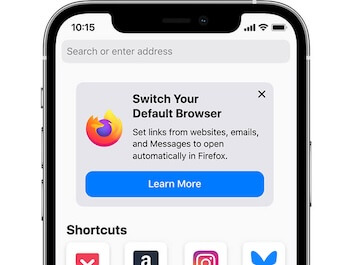
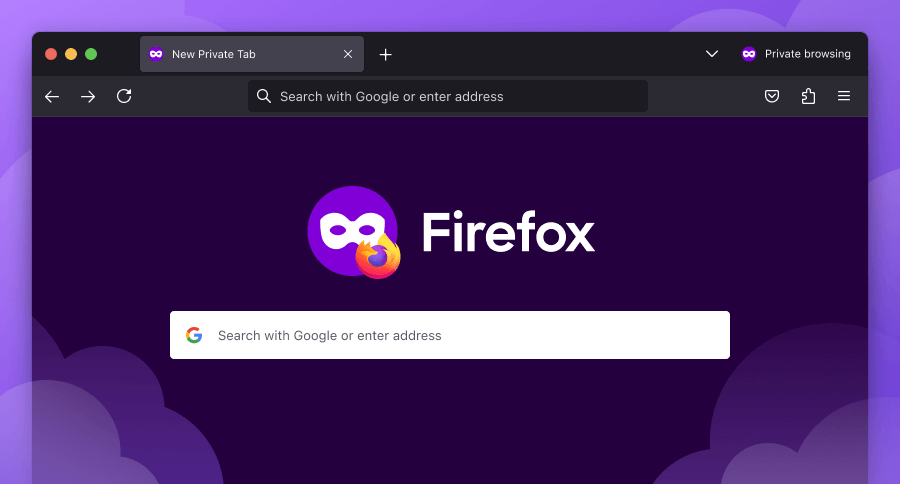
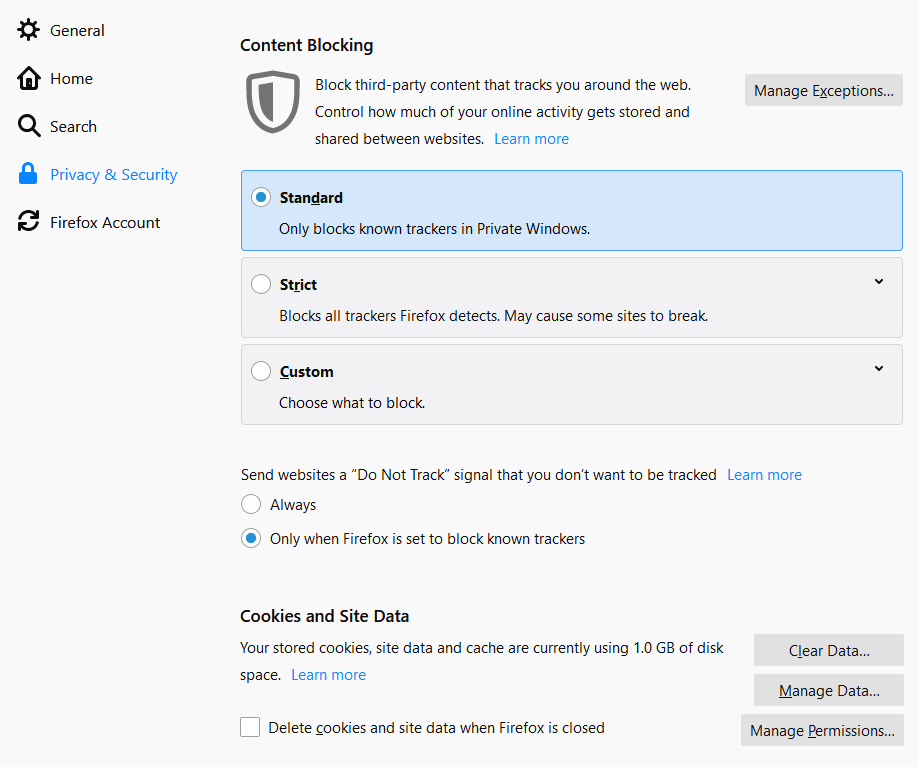
Most people use Chrome by default — and that’s fine — but Firefox comes with built-in privacy protections like:
- Tracker blocking
- Anti-fingerprinting
- Enhanced private browsing
It’s faster and safer for daily browsing without ads following you everywhere.
Real life tip:
Use Firefox for sensitive browsing like banking or personal accounts.
2. DuckDuckGo (Search & App)


4
Ditch Google search when you don’t want everything logged.
DuckDuckGo:
- Doesn’t track your searches
- Blocks hidden trackers
- Has a privacy-focused app and extension
This means your searches are not linked to your identity.
Use case:
Search for health symptoms, personal topics, or anything you don’t want stored in your search history.
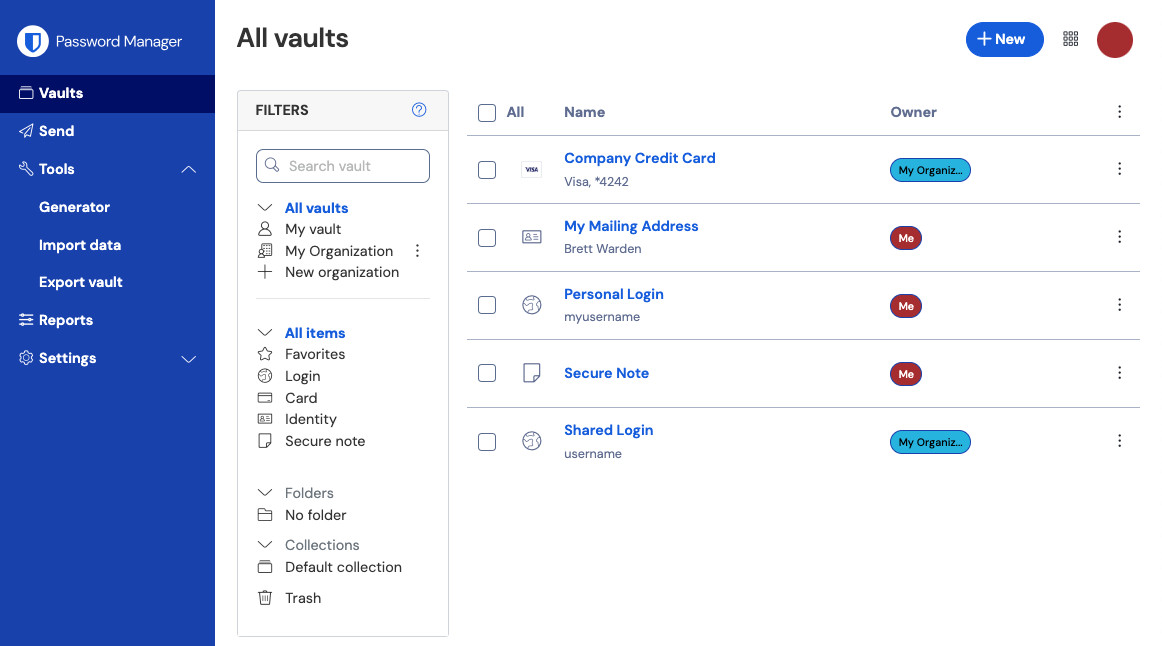
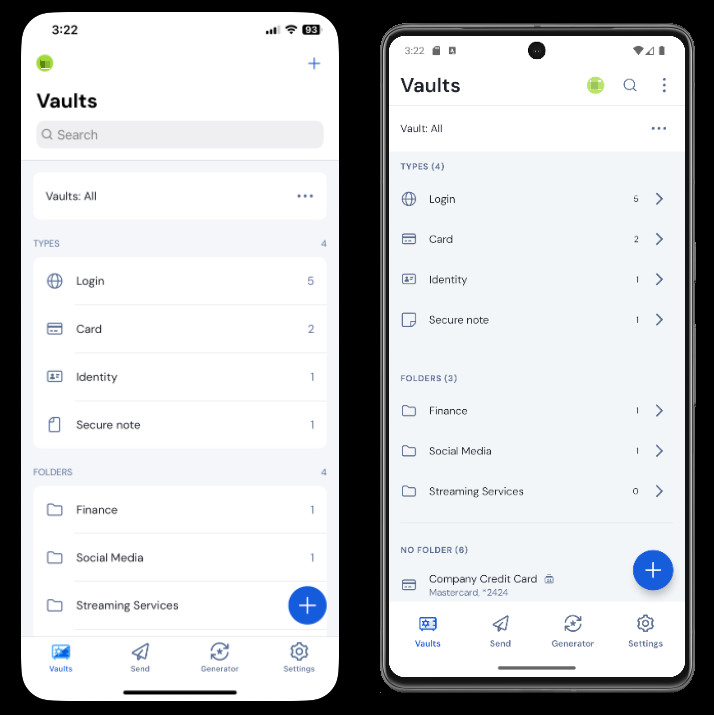
3. Bitwarden (Free Password Manager)

4
Passwords are the first line of defence.
Weak or repeated passwords are a privacy disaster.
Bitwarden helps you:
- Store passwords securely
- Generate strong passwords
- Auto-fill logins safely
The best part? The free plan is fully usable and open-source.
Personal practice:
I use unique passwords for all accounts — Bitwarden remembers them for me.
4. Privacy Badger (Browser Extension)

This Chrome/Firefox extension blocks trackers on websites.
Unlike ad blockers that only block ads, Privacy Badger blocks hidden trackers that follow you across sites.
This means:
- Less targeted ads
- Fewer data leaks
- Cleaner browsing
Note: Works best with Firefox or Chrome desktop.
5. HTTPS Everywhere (Browser Extension)
This simple extension ensures you visit only secure (HTTPS) websites whenever possible.
HTTPS:
- Encrypts data between you and the site
- Stops eavesdroppers
- Keeps logins and forms safer
Most sites use HTTPS now, but this extension ensures you always connect securely.
6. Signal (Encrypted Messaging)
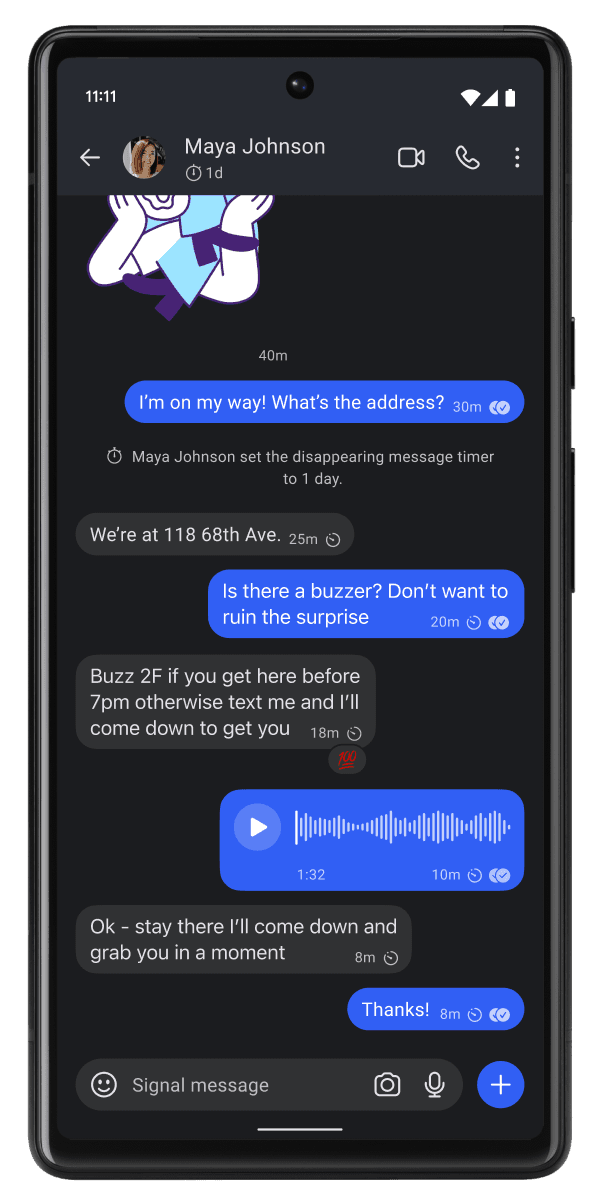
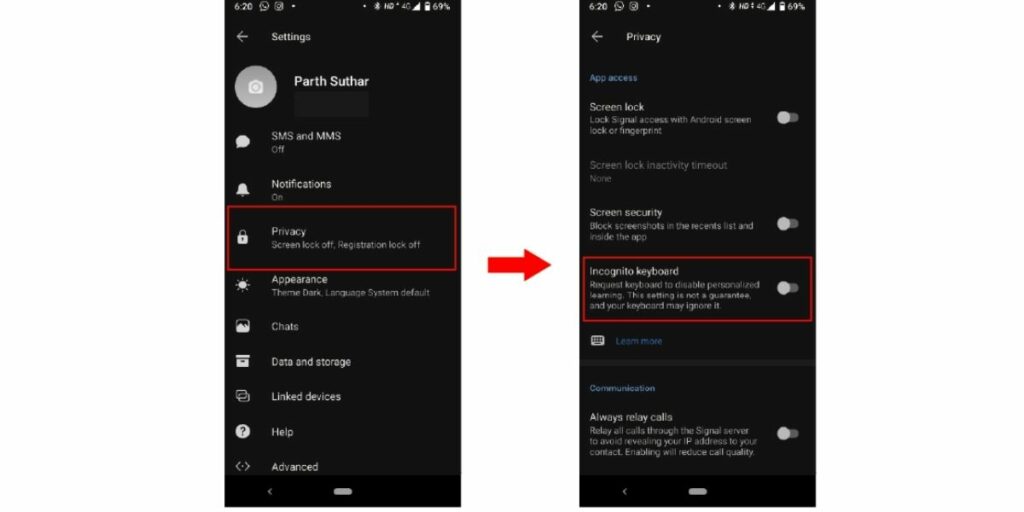
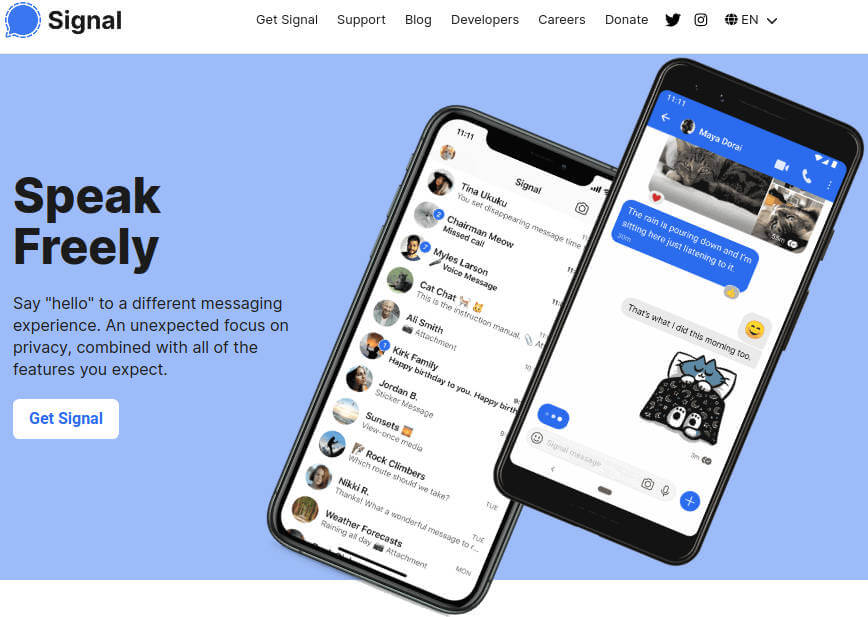
WhatsApp is popular, but Signal goes a step further in privacy.
Signal offers:
- End-to-end encryption
- Minimal metadata storage
- Screen security
- Disappearing messages
Even if someone intercepts data, Signal keeps the content safe.
Use it especially for:
- Sensitive conversations
- Important group chats
- Family safety discussions
7. Proton Mail (Encrypted Email)
Proton Mail is a free email service focused on privacy.
Features:
- End-to-end encrypted emails (to other Proton users)
- No tracking
- Open source
- Zero access by Proton themselves
If you want a private inbox for secure communication — Proton Mail is trusted and safe.
8. Tor Browser (Maximum Anonymity)
Tor is for when you want serious privacy — not for everyday browsing, but for cases when privacy is very important.
Tor routes your traffic through several layers to hide:
- Your identity
- Your IP
- Your location
It’s slower by design, but much more private.
Use it when:
- You’re researching sensitive topics
- You don’t want your IP visible
- You’re on a shared network
Note: Not for everything — just when privacy is a priority.
9. AdGuard DNS / NextDNS (Free DNS Privacy)
These are free DNS services that:
- Block trackers at the network level
- Improve privacy across all apps
- Reduce targeted tracking
Instead of using default DNS (network or ISP), these prioritize privacy.
You can set them in Android/iOS network settings.
Not flashy, but powerful.
10. Incognito / Private Mode (Browser Feature)
Not a separate app, but still important.
Private/Incognito mode:
- Doesn’t save browsing history
- Doesn’t store cookies
- Clears session data after use
Use it for:
- One-time searches
- Banking or personal accounts
- Shared devices
Not perfect privacy, but helpful.
11. Android Privacy Dashboard (Built-In Protection)
Many people never explore this, but it’s powerful.
In Android:
Settings → Privacy → Permission Manager → Privacy Dashboard
Here you can:
- See which apps accessed camera/mic/location
- Revoke unnecessary permissions
- Track data usage per app
Check monthly — it gives real control.
12. Google/Apple Find My Device (Privacy & Safety)
Not usually listed in privacy lists, but honestly — it protects your personal data if your device is lost.
Enable:
- Find My Device (Android)
- Find My iPhone (iOS)
Why it matters:
- You can remotely lock or erase your phone
- Prevent misuse of data
- Track lost device
Simple and essential.
Quick Privacy Habits (No Tools Needed)
Tools help, but privacy also needs good habits:
✅ Never share OTP, PIN, passwords
✅ Avoid random public Wi-Fi for sensitive logins
✅ Turn off Bluetooth/Wi-Fi when not in use
✅ Don’t overshare personal info on social media
✅ Use 2FA on all important accounts
These habits protect you even when tools don’t apply.
Honest Pros & Cons of Privacy Tools
👍 Pros
- Protects personal data
- Reduces tracking and profiling
- Keeps accounts safer
- Helps long-term digital hygiene
👎 Cons
- Some tools have a small learning curve
- Too many protections can break website functionality
- Tor is slow and not needed for everyday use
Privacy is a balance, not perfection.
2 Personal Tips I Use Everyday
1. Use a privacy browser (Firefox or DuckDuckGo) for anything sensitive
Banking, email, research — privacy-focused browser first.
2. Review app permissions once a month
You’ll be shocked how many unnecessary permissions apps request.
Final Thoughts (Real, Not Scary)
Protecting your privacy online doesn’t mean hiding from the world.
It means being aware, using the right tools, and staying in control of your data.
These best free tools to protect your privacy online work together — pick a few that fit your routine and apply them slowly.
You don’t need all of them at once. Start with:
- A better browser
- A password manager
- 2FA
- Encrypted messaging
And build from there.
If you tell me what you use your phone for most (shopping, banking, social, work), I can suggest a custom privacy stack just for you.